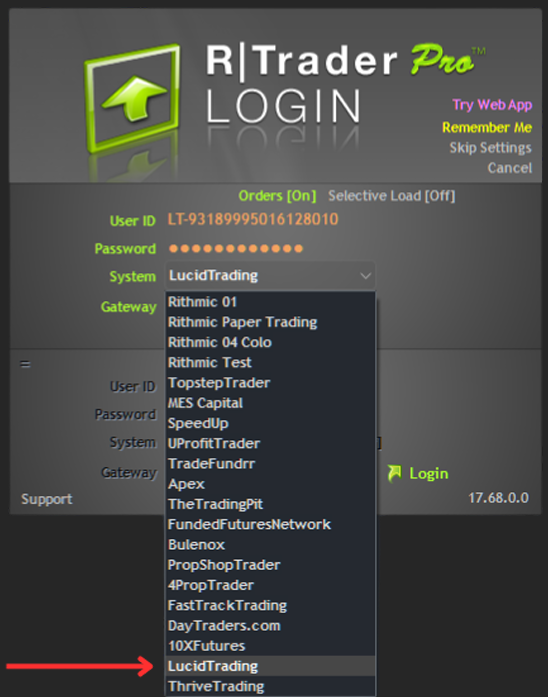
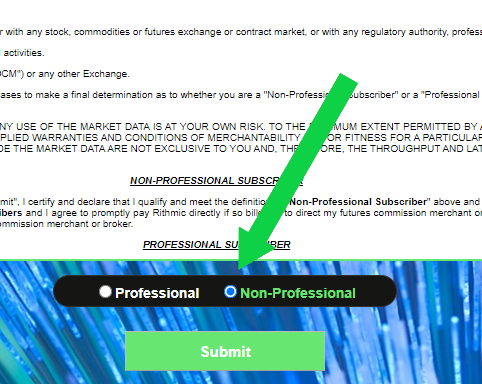
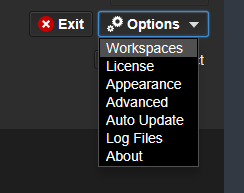
Before you start: Confirm you’ve signed your Rithmic Trading Agreements (required before connecting/trading) via RTrader.
01 Download & Launch Quantower
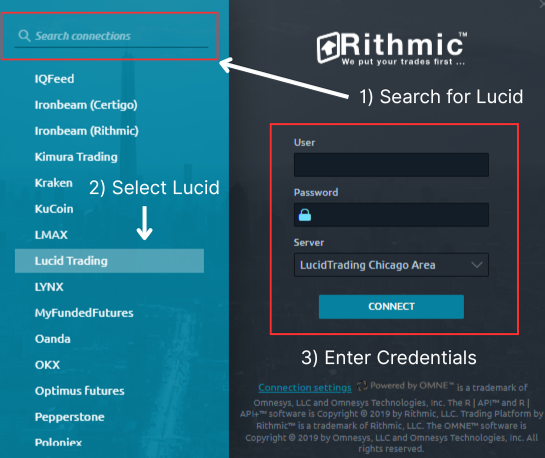
02 Open Connections Manager
- Click any connection on your Quantower task bar to open Connections Manager.
03 Find and Select Lucid Trading (Rithmic)
- Use the search box and type Lucid.
- Select Lucid Trading from the list.
04 Enter Credentials + Choose Server
- Enter your User ID
- Enter your Password
- Set Server/Gateway to LucidTrading Chicago Area
Important: Make sure you’re selecting Lucid Trading — not a default Rithmic server.
05 Confirm You’re Connected
- Quantower should show the connection as Connected.
- You can now open charts and begin trading.
You’re all set! Quantower is connected to your Lucid Trading account.
Before you start: Ensure you’ve signed your Rithmic Agreements in RTrader (required before connecting/trading).
01 Launch MotiveWave
- Open MotiveWave.
- On first launch, you’ll see options to Create Workspace or click the Gear icon.
02 Create a Workspace
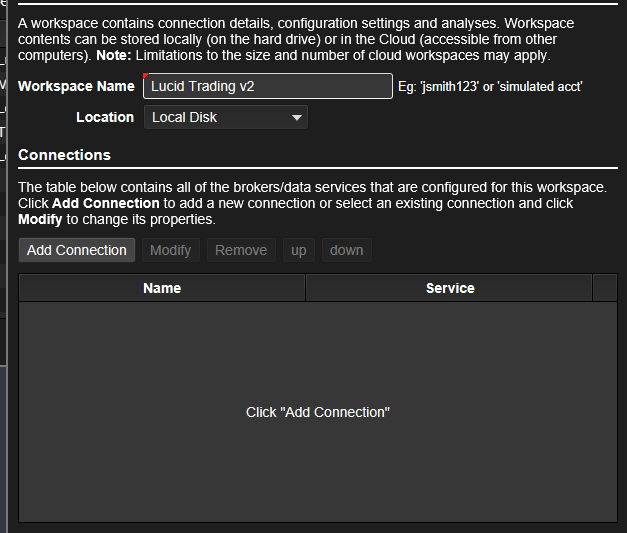
- Click Workspaces.
- Select New Workspace.
- Name it (e.g., Lucid Trading).
- Click Add Connection.
03 Add Your Connection
- Name your connection (e.g., Lucid Rithmic).
- From the provider dropdown, select Rithmic.
- Click Add Connection.
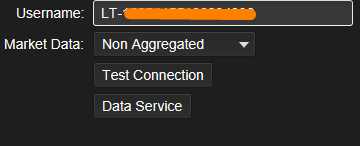
04 Enter Your Rithmic Username
- In the Username field, enter your Lucid-provided Rithmic ID (starts with LT--).
- Click Test Connection.
05 Test Connection Window
After clicking Test Connection, a new window will appear:
- In the System dropdown, select Lucid Trading.
- Enter your Password.
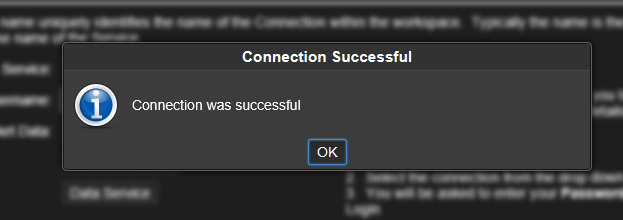
- Click Test Connection.
- You should see a success message.
06 Finalize the Workspace
- Click Add Connection.
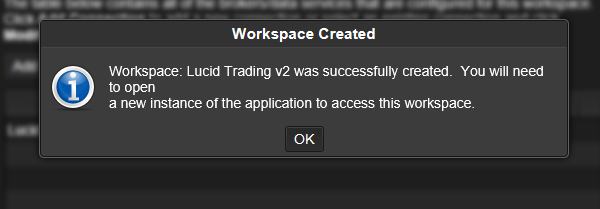
- Click Create Workspace.
07 Restart MotiveWave
- Exit MotiveWave completely.
- Relaunch MotiveWave.
08 Log In to Your Workspace
- From the workspace dropdown, choose the workspace you created (e.g., Lucid Trading).
- Click Continue.
- Enter your password (check Remember Password if desired).
- Click Connect.
09 Final Check
- Ensure Lucid Trading is still selected in the connection window.
- Click Connect again if prompted.
You’re now fully connected and ready to trade!
Bonus: Copy Trading
Trade copiers are permitted by Lucid, however traders are fully responsible for any software errors, malfunctions, or unintended outcomes. Traders should ensure orders have executed and cancelled correctly after each trade.
The MotiveWave copy trader is included within the MotiveWave Order Flow licence that we provide with our accounts.
Before you begin: Ensure you have signed your Rithmic trader agreements via RTrader.
01 Navigate to File / Data Service
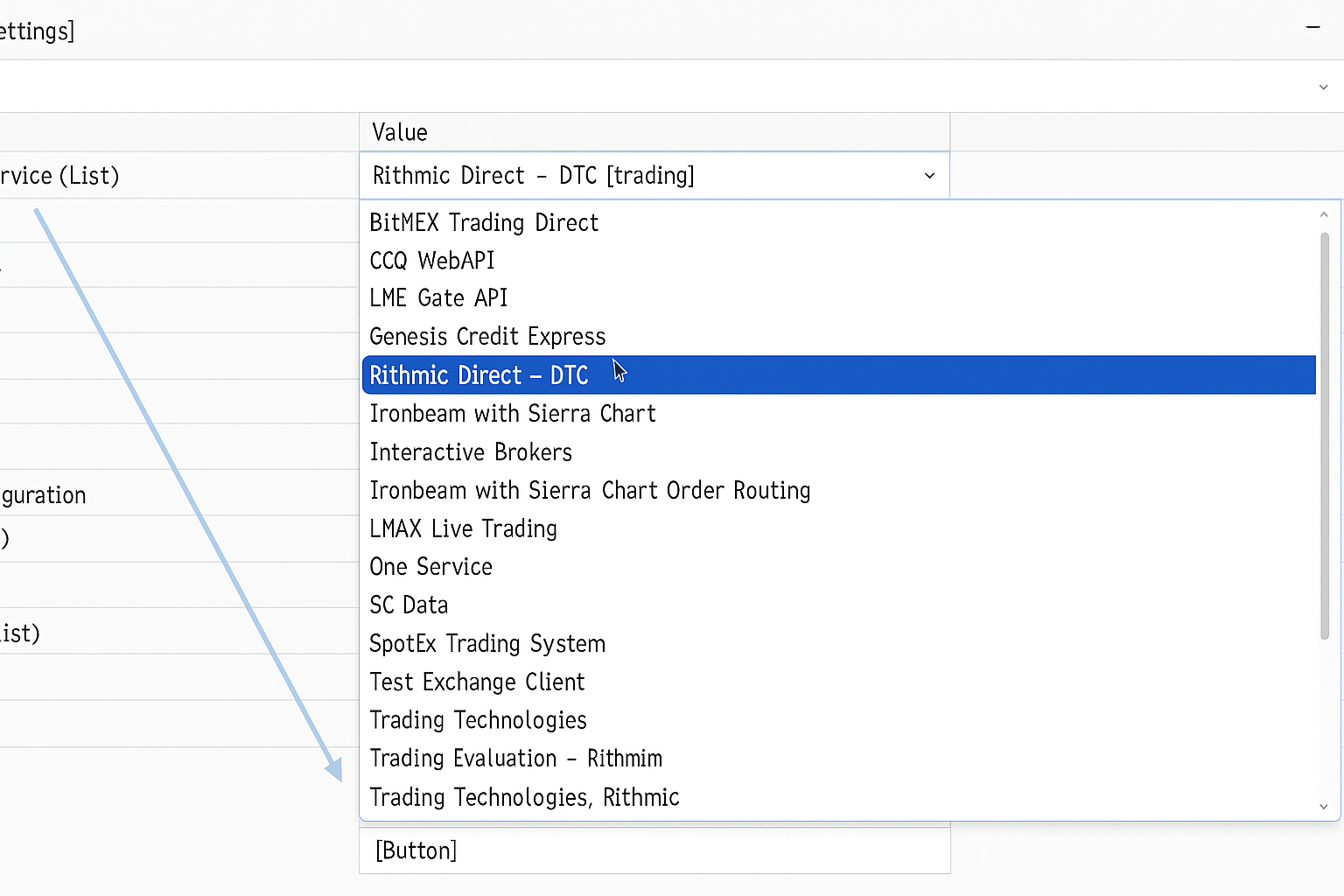
- Select the Rithmic Service
- Location: Service → Current Selected Service (List)
- Selection: Rithmic Direct - DTC [trading]
This tells Sierra Chart to use the Rithmic connection protocol.
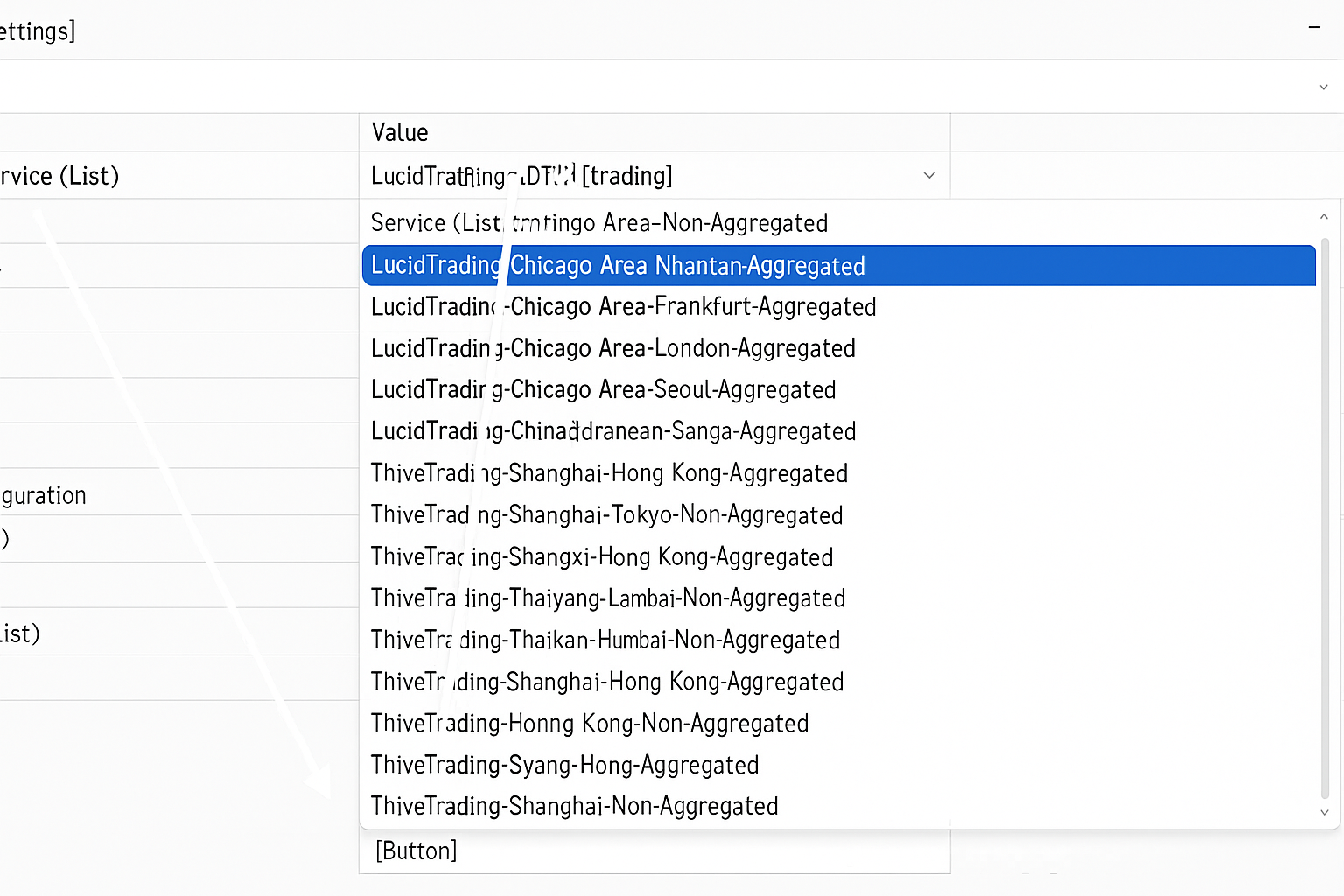
02 Choose the Lucid Server
- Location: Service Settings → Server (List)
- Selection: LucidTrading-Chicago Area-Non-Aggregated
This defines the specific Rithmic server your account is routed through.
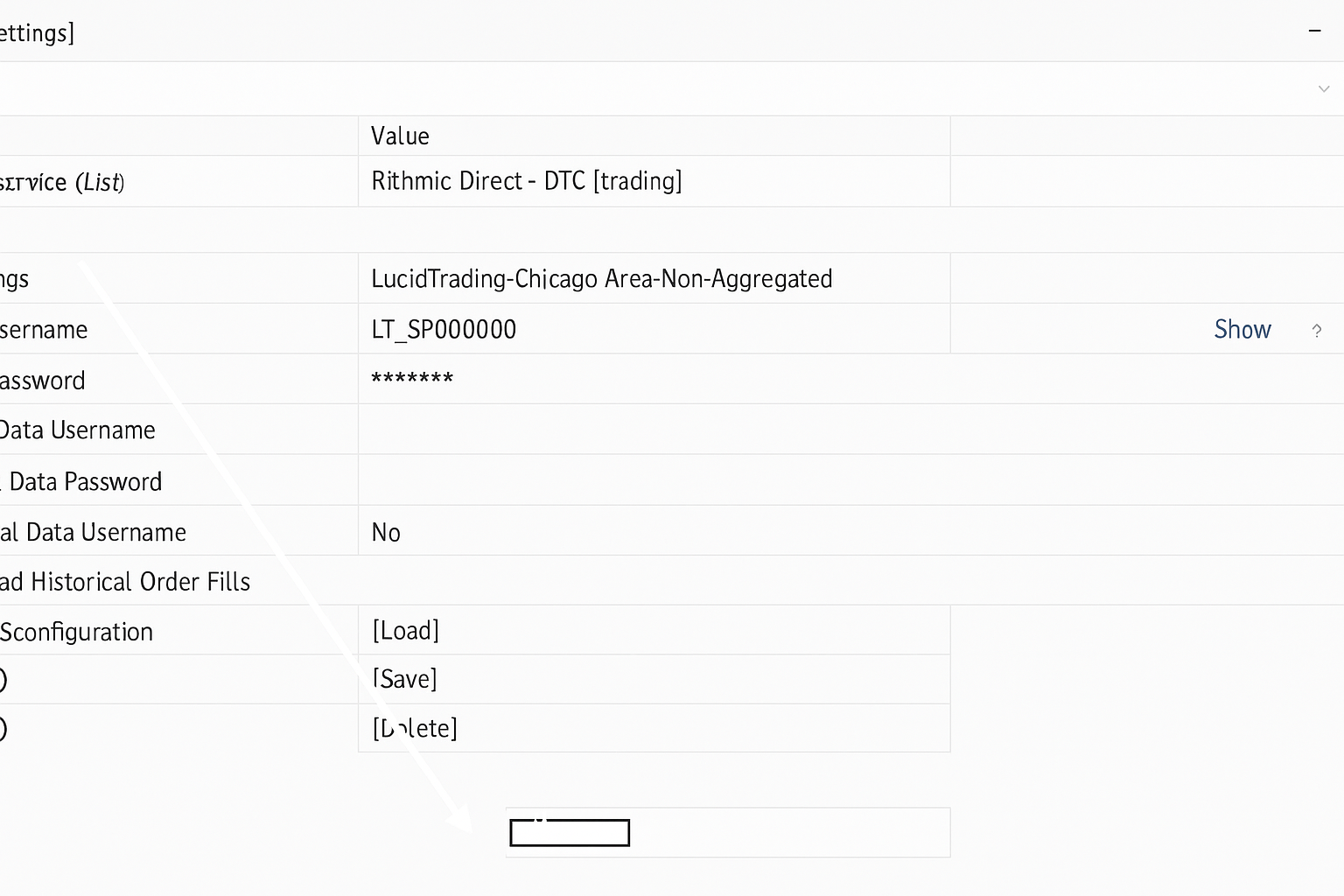
03 Enter Trading Credentials
- Trading Username: Starts with LT-
- Trading Password: Same password you use to login to RTrader with Lucid
Tip: Copy and paste to ensure no typos. You do not need to select “market data” or “historical data” — Sierra’s Denali data takes care of this.
OPT Save DTS Config
If you’re managing multiple configurations or want a backup:
- Use the Save button under Saved DTS Configuration → DTS Config (List)
- Give it a name like “Lucid-Rithmic” for example.
You’re all set! Sierra Chart is connected to your Lucid Trading account.